A Guide to Drawing Tablets for Digital Artists
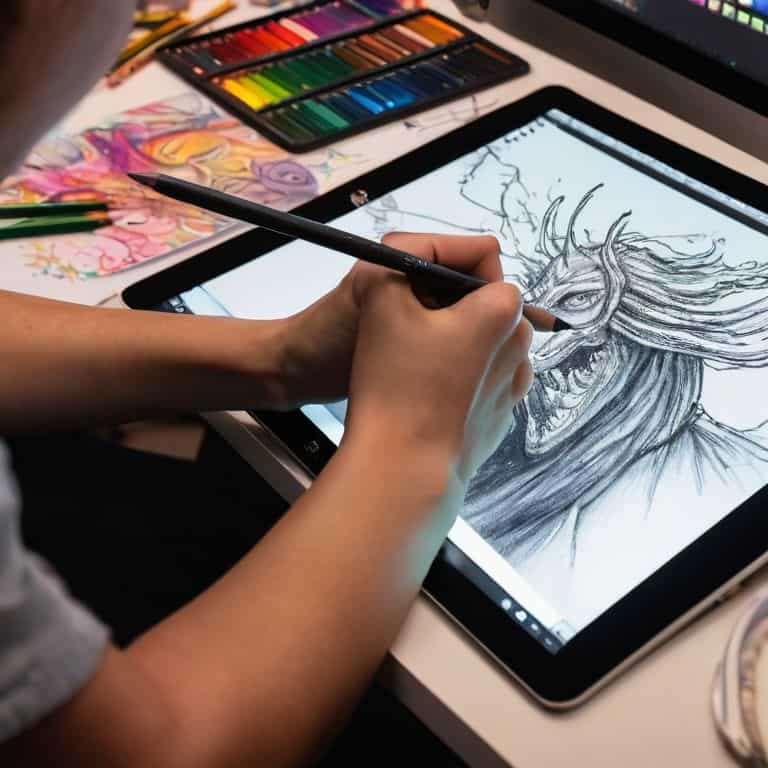
I still remember the day I decided to take the plunge and invest in a drawing tablet – it was like unleashing my creative potential. As someone who’s spent years reviewing and testing various gadgets, I was amazed by the impact a good drawing tablet can have on one’s artistic journey. That’s why I’m excited to share with you a guide to drawing tablets, a comprehensive resource to help you navigate the often-confusing world of digital art tools. My goal is to provide you with the insights and knowledge I’ve gained from my own experiences, so you can make an informed decision and find the perfect tablet to enhance your creative life.
In this article, I’ll cut through the hype and focus on the essentials, giving you practical advice on how to choose the right drawing tablet for your needs. I’ll share my own stories of trial and error, highlighting the key features to look out for and the common pitfalls to avoid. By the end of this guide to drawing tablets, you’ll be equipped with the knowledge to make a thoughtful decision and start creating stunning digital art with confidence. Whether you’re a seasoned artist or just starting out, my goal is to provide you with a clear and honest perspective on the world of drawing tablets, so you can take your art to the next level.
Table of Contents
Guide Overview: What You'll Need

Total Time: 1 hour 30 minutes
Estimated Cost: $50 – $200
Difficulty Level: Easy / Intermediate
Tools Required
- Computer (with internet connection)
- Digital Drawing Software (e.g., Adobe Photoshop)
- Graphite Pencil (for traditional sketching)
- Eraser (for correcting mistakes)
Supplies & Materials
- Drawing Tablet (e.g., Wacom or Huion brand)
- Stylus (compatible with drawing tablet)
- Screen Calibration Tool (for accurate screen alignment)
- Paper (for traditional sketching and practice exercises, 8.5 inches x 11 inches)
Step-by-Step Instructions
- 1. First, determine your budget for the drawing tablet, as prices can range from under $100 to over $1,000, depending on the features and quality you’re looking for. Consider what you’ll be using the tablet for – whether it’s casual doodling or professional graphic design – and set a realistic budget accordingly.
- 2. Next, research different types of drawing tablets, including graphics tablets, pen tablets, and drawing displays. Each has its own unique characteristics, such as the presence or absence of a screen, and the type of stylus used. Understanding the differences will help you narrow down your options and find the best fit for your needs.
- 3. Now, evaluate the tablet’s size and resolution, as these factors will impact your overall drawing experience. Consider the physical space where you’ll be using the tablet, as well as the level of detail you require for your work. A higher resolution and larger active area can provide more precision and comfort, but may also increase the cost.
- 4. Look into the stylus and eraser capabilities, as a comfortable and responsive stylus can make a significant difference in your drawing experience. Consider the type of stylus tips available, the level of pressure sensitivity, and whether the stylus is battery-free or requires charging.
- 5. Consider the compatibility and software requirements for the drawing tablet, ensuring that it will work seamlessly with your computer or mobile device. Check the system requirements, such as operating system and processor speed, and whether the tablet comes with its own software or is compatible with popular drawing programs.
- 6. Read reviews and watch tutorials to get a sense of how the drawing tablet performs in real-world use. Look for feedback from other artists and designers who have used the tablet, and watch video reviews to see the tablet in action. This will give you a better understanding of the tablet’s strengths and weaknesses.
- 7. Once you’ve narrowed down your options, compare the warranty and customer support offered by the manufacturer. A good warranty and responsive customer support can provide peace of mind and protect your investment in case anything goes wrong with the tablet. Look for manufacturers that offer comprehensive warranties and dedicated support teams.
A Guide to Drawing Tablets
As I delve deeper into the world of digital art, I’ve come to realize that choosing the right drawing tablet is just the beginning. To truly unlock your creative potential, it’s essential to explore the various digital art software for beginners that can help you get started. From intuitive interfaces to advanced features, the right software can make all the difference in your artistic journey.
When it comes to drawing tablet reviews for artists, it’s crucial to consider the specific needs of your craft. For instance, if you’re a graphic designer, you may want to look into graphic design tools for iPad that can help you create stunning visuals on-the-go. On the other hand, if you’re a professional artist, you may want to focus on tips for improving digital drawing skills to take your work to the next level.
Ultimately, the key to success lies in how to choose a drawing tablet that aligns with your unique needs and goals. By considering factors such as pressure sensitivity, screen size, and ergonomics, you can find a tablet that feels like an extension of your own hand. Whether you’re a beginner or a seasoned pro, taking the time to research and compare different options can make all the difference in your creative pursuits.
How to Choose Your Perfect Match
When it comes to choosing the perfect drawing tablet, it’s essential to consider your unique needs and preferences. I’ve found that it’s not just about the specs, but about how the tablet feels in your hands. Do you prefer a compact device for sketching on-the-go, or a larger surface for intricate details? Perhaps you’re a beginner looking for an intuitive interface, or a seasoned artist seeking advanced features like tilt recognition and gesture control.
As I’ve delved into the world of drawing tablets, I’ve realized that the best match is often a balance of form and function. By weighing factors like pressure sensitivity, display quality, and ergonomic design, you can find a tablet that seamlessly integrates into your creative workflow.
Tips for Mastering Digital Art Skills
As I sit at my desk, surrounded by vintage audio equipment and stacks of photography books, I’m reminded that mastering digital art skills takes time and practice. To get the most out of your drawing tablet, it’s essential to develop a consistent workflow and experiment with different techniques. I’ve found that setting aside dedicated time to practice and play with various software and tools is crucial to improving your craft.
By doing so, you’ll become more comfortable with the tablet’s sensitivity and pressure levels, allowing you to create more nuanced and expressive artwork. Don’t be afraid to try new things and make mistakes – it’s all part of the learning process. With patience and dedication, you’ll be well on your way to unlocking your full creative potential and producing stunning digital art.
Essential Insights for Drawing Tablet Mastery
- Start with the basics: understand your computer’s compatibility and the tablet’s operating system requirements to ensure seamless integration
- Experiment with different stylus types and tips to discover your optimal writing and drawing experience
- Calibrate your tablet regularly to maintain precision and accuracy, especially if you’re working on detailed projects
- Take advantage of customizable shortcuts and gestures to streamline your workflow and maximize productivity
- Practice, practice, practice: getting comfortable with a drawing tablet takes time, so be patient and don’t be afraid to try new techniques and software
Key Takeaways for Choosing the Perfect Drawing Tablet
I’ve found that understanding your specific needs and preferences is crucial in selecting a drawing tablet that enhances your creative workflow
Through my in-depth testing and research, I’ve learned that factors such as pressure sensitivity, display size, and stylus ergonomics play a significant role in determining the overall user experience
By mastering the fundamentals of digital art and staying up-to-date with the latest technologies and trends, you can unlock the full potential of your drawing tablet and take your artistic skills to the next level
The Artist's Canvas Evolved
A drawing tablet is more than just a tool, it’s a gateway to unlocking your creative potential – it’s where the analog heart meets the digital soul, and the possibilities are endless.
Timothy Berg
Bringing Your Creative Vision to Life
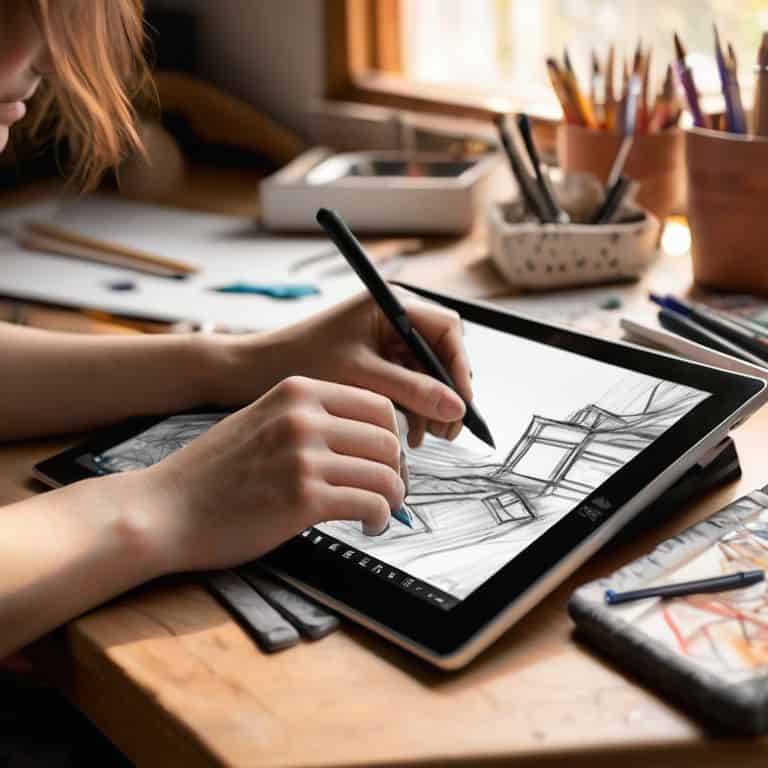
As we conclude this guide to drawing tablets, it’s essential to recall the key considerations when choosing the perfect match for your artistic needs. From understanding the different types of tablets and their respective technologies, to mastering the basics of digital art, each step is crucial in unlocking your full creative potential. By following the step-by-step instructions and tips outlined in this guide, you’ll be well on your way to finding a drawing tablet that complements your style and enhances your artistic expression.
As you embark on your digital art journey, remember that the right tools can unleash a new level of creativity within you. Don’t be afraid to experiment, try new things, and push the boundaries of what’s possible. With the right mindset and equipment, you’ll be amazed at the incredible works of art you can create, and the sense of fulfillment that comes with bringing your vision to life.
Frequently Asked Questions
What are the key features to consider when selecting a drawing tablet for beginner digital artists?
For beginner digital artists, I recommend focusing on key features like pressure sensitivity, stylus ergonomics, and display size. A decent starting point is a tablet with 2048 levels of pressure sensitivity and a comfortable stylus design. Also, consider the screen size and resolution to ensure it fits your workflow and artistic style.
How do I calibrate my drawing tablet to achieve the most accurate strokes and pressure sensitivity?
To calibrate your drawing tablet, start by installing the manufacturer’s driver software, then follow the on-screen prompts to adjust settings like pen sensitivity and tilt recognition. I also recommend creating a custom profile to fine-tune your strokes, ensuring a seamless blend of analog feel and digital precision.
Can I use a drawing tablet with any computer or device, or are there specific system requirements I need to be aware of?
When it comes to compatibility, most drawing tablets are designed to work with both Mac and PC, but it’s essential to check the system requirements beforehand. Some tablets may need specific drivers or software, while others might be plug-and-play. I’ve found that checking the manufacturer’s website for compatibility with your device’s operating system is always a good idea to ensure seamless integration.