A Colorist’s Beginner’s Guide to Davinci Resolve
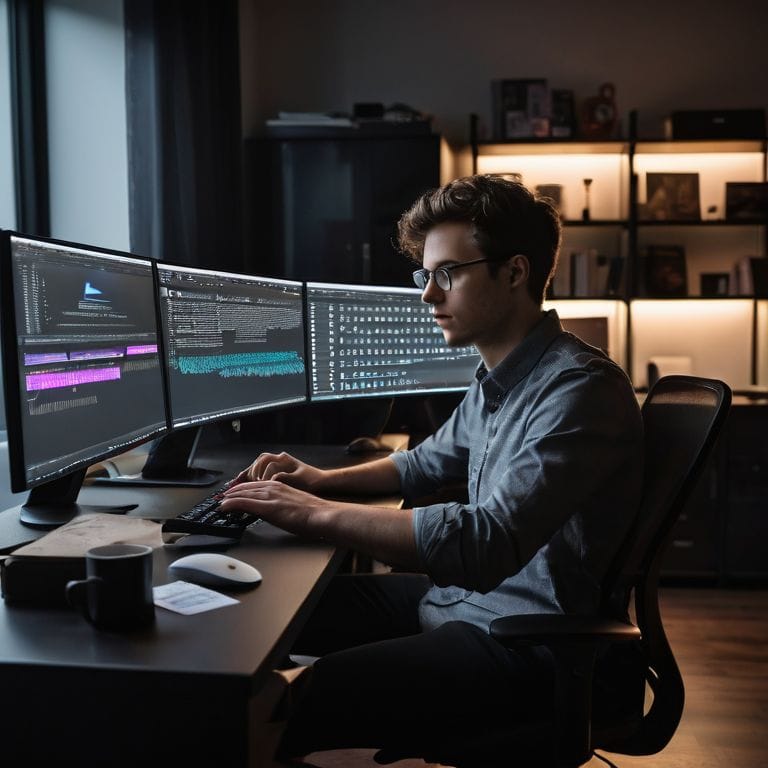
I still remember the first time I opened DaVinci Resolve, feeling like a kid in a candy store, eager to unlock its secrets. As a documentary filmmaker, I’ve spent years honing my craft, and I’ve come to realize that a beginner’s guide to DaVinci Resolve is not just about learning software, but about understanding the art of storytelling. The myth that DaVinci Resolve is only for professionals is a common one, but I’m here to tell you that with the right guidance, anyone can master its tools and create stunning videos.
In this article, I’ll share my personal experience and practical advice on how to get started with DaVinci Resolve, from setting up your project to adding the final touches. You’ll learn how to import and organize your footage, create a rough cut, and fine-tune your edit to create a compelling narrative. My goal is to demystify the editing process and provide you with the skills and confidence to produce high-quality videos that tell a story and evoke emotions. By the end of this beginner’s guide to DaVinci Resolve, you’ll be well on your way to becoming a proficient editor, capable of bringing your unique vision to life.
Table of Contents
- Guide Overview: What You'll Need
- Step-by-Step Instructions
- Unleashing Davinci Resolve
- Unlocking DaVinci Resolve: 5 Essential Tips for Beginners
- Key Takeaways for Mastering DaVinci Resolve
- Unlocking the Power of DaVinci Resolve
- Embracing the Art of Editing with DaVinci Resolve
- Frequently Asked Questions
Guide Overview: What You'll Need
Total Time: 2 hours 30 minutes
Estimated Cost: $0 – $0
Difficulty Level: Easy
Tools Required
- Computer (with internet connection)
- Blackmagic Design DaVinci Resolve Software (free download)
Supplies & Materials
- Tutorials or Online Courses (optional)
- Sample Video Footage (for practice editing)
Step-by-Step Instructions
- 1. First, let’s start by downloading and installing DaVinci Resolve on your computer. This is a straightforward process that requires you to visit the Blackmagic Design website, click on the download link, and follow the installation prompts. Make sure you have a compatible computer system and sufficient storage space, as DaVinci Resolve can be a resource-intensive program.
- 2. Once you’ve installed DaVinci Resolve, launch the program and take some time to familiarize yourself with the interface. You’ll notice that the layout is divided into different pages, including the Media page, Edit page, Color page, Fairlight page, and Deliver page. Each page serves a specific purpose in the post-production process, and understanding how to navigate between them is essential.
- 3. To start a new project in DaVinci Resolve, click on the “New Project” button and enter your project details, such as the project name, resolution, frame rate, and color space. It’s essential to set up your project correctly from the outset, as this will affect the overall quality and consistency of your final output. Take your time to configure your project settings carefully, considering factors like the type of footage you’ll be working with and the desired delivery format.
- 4. Next, let’s import your media into DaVinci Resolve. You can do this by clicking on the “Import Media” button and selecting the files you want to work with. DaVinci Resolve supports a wide range of file formats, including MP4, ProRes, and RAW files. As you import your media, take note of the clip organization features, which allow you to categorize and tag your clips for easier access and management.
- 5. Now that you have your media imported, it’s time to start building your edit. DaVinci Resolve offers a range of editing tools, including the ability to trim clips, add transitions, and apply effects. Start by creating a new timeline and adding your first clip. Experiment with different editing techniques, such as cutting, copying, and pasting clips, to get a feel for how the program works.
- 6. As you continue to build your edit, pay attention to the audio levels and make adjustments as needed. DaVinci Resolve includes a range of audio tools, including the ability to adjust levels, add fades, and apply noise reduction. Good audio quality is essential for creating an immersive and engaging viewing experience, so don’t neglect this important aspect of your edit.
- 7. Once you’ve completed your edit, it’s time to move on to the Color page and start color grading your footage. DaVinci Resolve offers a range of color grading tools, including color wheels, curves, and LUTs. Experiment with different color grading techniques to enhance the mood and atmosphere of your film, and don’t be afraid to try out new and creative approaches.
- 8. Finally, when you’re happy with your edit and color grade, it’s time to export your final project. DaVinci Resolve offers a range of export options, including the ability to export in different resolutions, frame rates, and file formats. Take your time to configure your export settings carefully, considering factors like the intended delivery platform and the desired level of quality.
Unleashing Davinci Resolve
As I dive deeper into the world of DaVinci Resolve, I want to share some essential tips for getting the most out of this powerful editing software. One of the most important things to consider is your system’s capabilities, so be sure to check the DaVinci Resolve system requirements before you start editing. This will ensure a smooth and efficient workflow, allowing you to focus on the creative aspects of your project.
When it comes to editing, color correction techniques can make or break the mood and atmosphere of your film. DaVinci Resolve offers a wide range of tools and features to help you achieve the perfect look, from color wheels to curves and LUTs. By mastering these techniques, you can add depth and emotion to your story, drawing your audience in and refusing to let them go.
As a filmmaker, I’ve worked with various editing software, including Adobe Premiere, but I always come back to DaVinci Resolve for its intuitive interface and flexibility. Whether you’re a YouTuber or a documentary filmmaker, DaVinci Resolve has the tools you need to bring your vision to life. With its free video editing software option, you can start editing right away, without breaking the bank.
Free Video Editing Secrets for Beginners
As I delve into the world of DaVinci Resolve, I’m reminded of the countless hours I’ve spent perfecting my craft. One of the most significant advantages of this software is its ability to unlock free video editing secrets for beginners. I recall my early days as an assistant editor, where I had to rely on expensive equipment and software to produce high-quality content. However, with DaVinci Resolve, the playing field has been leveled, allowing newcomers to produce stunning videos without breaking the bank.
By leveraging the power of DaVinci Resolve, beginners can now access a wide range of professional-grade tools, from color correction to audio editing. This has democratized the filmmaking process, enabling aspiring creators to bring their unique visions to life. As someone who’s passionate about storytelling, I believe that everyone deserves the opportunity to tell their story, regardless of their budget or experience. With DaVinci Resolve, the possibilities are endless, and I’m excited to share my knowledge with you, so you can unlock your full creative potential.
Taming System Requirements for Smooth Edits
To truly unleash the power of DaVinci Resolve, it’s essential to ensure your system can handle the demands of video editing. I always say, a smooth edit starts with a solid foundation. When I’m working on a project, I need to know that my computer can keep up with my creative vision. That’s why I recommend checking your system’s specs against DaVinci Resolve’s requirements. A minimum of 16 GB RAM and a dedicated graphics card will make all the difference in preventing lag and glitches.
By meeting these system requirements, you’ll be able to focus on the art of editing, rather than fighting with your computer. Trust me, there’s no worse feeling than being in the zone, only to have your system freeze up on you. With a powerful machine behind you, you’ll be free to experiment with different color grades, sound designs, and editing techniques, bringing your story to life in a truly cinematic way.
Unlocking DaVinci Resolve: 5 Essential Tips for Beginners
- Mastering the Art of Media Import: Understanding how to efficiently organize and import your media into DaVinci Resolve to set yourself up for success
- Color Grading 101: Learning the fundamentals of color wheels, curves, and LUTs to elevate the mood and aesthetic of your footage
- AudioAlchemy: Unlocking the Power of Sound Design in DaVinci Resolve to create an immersive experience for your audience
- Editing like a Pro: Harnessing the potential of DaVinci Resolve’s editing tools, from multi-cam editing to dynamic zooms and more
- Deliverance: Exporting and Optimizing Your Final Cut for Various Platforms, ensuring your masterpiece looks stunning on any screen, from social media to cinema
Key Takeaways for Mastering DaVinci Resolve
Understanding the system requirements and optimizing your workstation is crucial for a seamless editing experience in DaVinci Resolve, allowing you to focus on the creative aspects of storytelling
Unlocking the full potential of DaVinci Resolve involves exploring its vast array of features, from color grading and sound design to visual effects, and understanding how each tool contributes to the narrative and emotional impact of your film
Practicing with free video editing resources and tutorials, and applying the principles of cinematic storytelling, will help you transform your raw footage into compelling, professional-looking videos that resonate with your audience
Unlocking the Power of DaVinci Resolve
The true magic of filmmaking happens not in the camera, but in the edit, and with DaVinci Resolve, you hold the keys to transforming your vision into a cinematic reality that captivates and inspires.
Maya Jenson
Embracing the Art of Editing with DaVinci Resolve
As we conclude this beginner’s guide to DaVinci Resolve, remember that the key to unlocking your full creative potential lies in understanding the fundamentals of editing. We’ve covered the essential steps to get you started, from taming system requirements to uncovering free video editing secrets. By grasping these concepts, you’ll be well on your way to transforming your raw footage into captivating stories that resonate with your audience. Whether you’re a aspiring filmmaker or a seasoned editor, DaVinci Resolve offers a powerful toolset to bring your vision to life.
As you embark on your editing journey, keep in mind that the true magic happens in the editing room. It’s where you get to shape your narrative, experiment with different pacing and tone, and ultimately craft a cinematic experience that leaves a lasting impression. So, don’t be afraid to push the boundaries of what’s possible, and remember that the art of editing is a continuous learning process. With dedication and practice, you’ll be able to wield DaVinci Resolve like a pro, and your stories will shine brighter than ever before.
Frequently Asked Questions
What are the basic tools and features I need to understand to get started with editing in DaVinci Resolve?
To get started with editing in DaVinci Resolve, focus on the media pool, timeline, and inspector. The media pool is where you organize your clips, the timeline is where you build your story, and the inspector is where you fine-tune your edits with color, audio, and effects tools.
How do I import and organize my footage in DaVinci Resolve for a seamless editing experience?
To import and organize your footage in DaVinci Resolve, start by creating a new project and setting up your media storage. Then, use the “Media” tab to import your clips, and organize them into folders and bins – I like to categorize by scene, date, or camera angle. This sets you up for a smooth editing experience and helps you find the story in your footage.
What are some essential color grading and sound design techniques in DaVinci Resolve that can elevate my video's emotional impact?
To elevate your video’s emotional impact, try using DaVinci Resolve’s color wheels to create a cohesive mood, and experiment with LUTs for a cinematic feel. For sound design, add depth with subtle FX and ambiance, and balance your mix to make dialogue shine.